XCSM Base
IDR 5.000.000 /month
- Unlimited users
- 50 GB storage included
- XCSM Android app included
- Email notifications from your domain
- Memberships, visas, licenses, contracts

Use a domain you buy on xdata.id to open XCSM — www.yourdomain.com or a subdomain such as notify.yourdomain.com. Set this in the client portal.
Xdata Client Service Management (XCSM) lets your business send files, track expirations, and notify users from your own email — for memberships, licenses, travel documents, contracts, and more.
IDR 5.000.000 /month
IDR 7.000.000 /month
+ IDR 5.000.000 /month
Yearly billing = monthly price × 12. Android app is included in every XCSM plan.
One platform to deliver important documents to your users, store them securely in their account, and keep everyone aware before something expires.
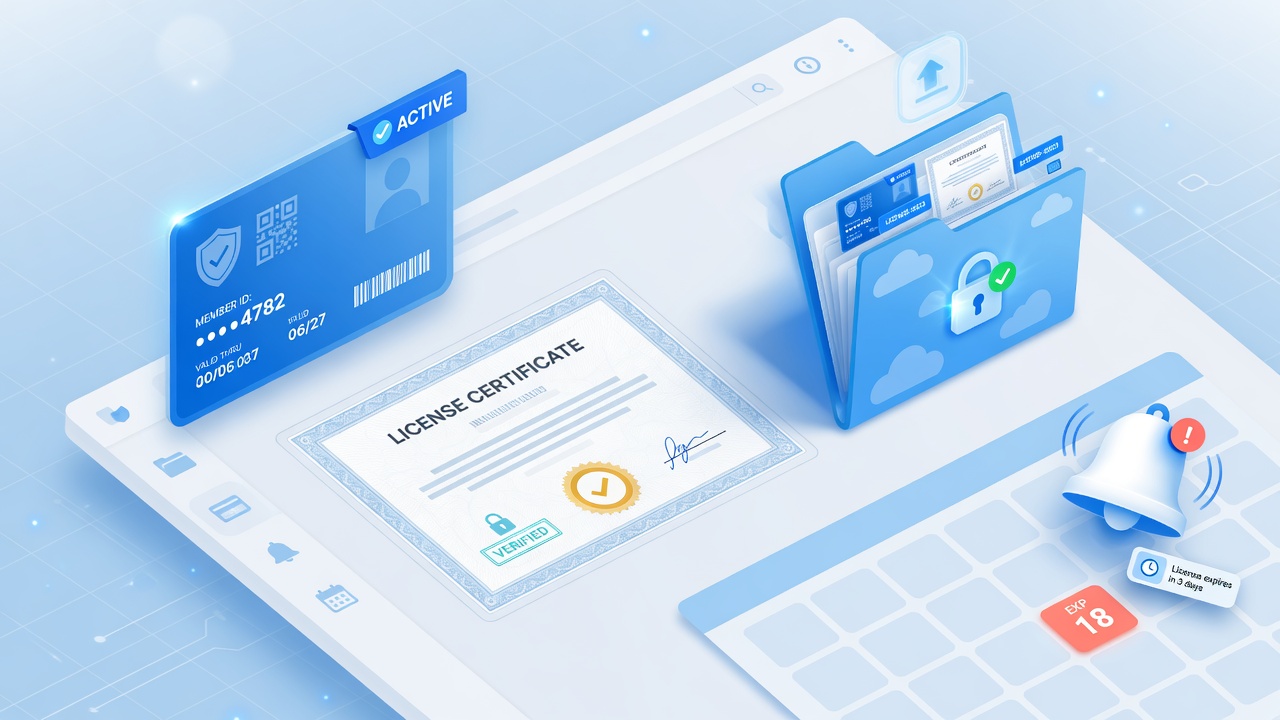
Use XCSM for membership and license programs. Send membership and license files to your users so they can store and keep them in their account. Set expiration dates and notifications so members know when their membership or license will expire — and can renew on time.
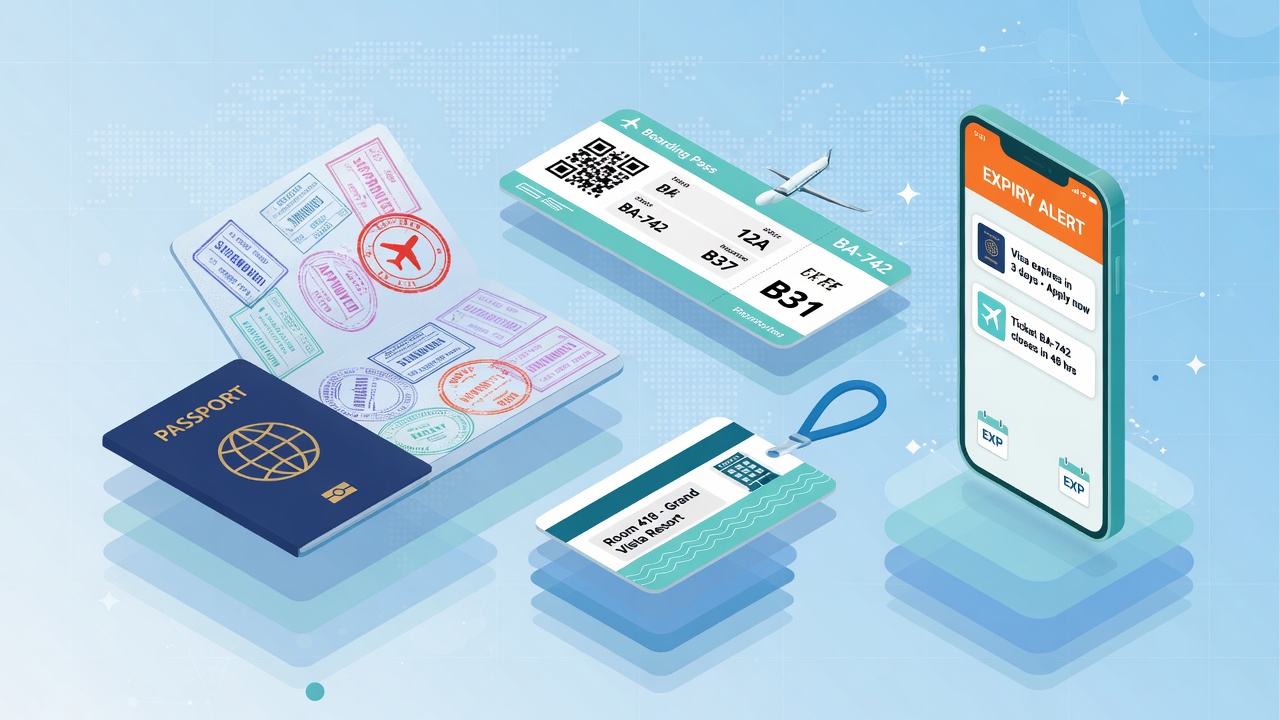
Travel agents can send visa documents, tickets, and accommodation details to their users through XCSM. Notifications alert travelers when a visa or ticket is about to expire, so they stay aware and can act before it is too late.

Notifications are sent from your own email, so messages feel personal and consistent with how you already approach customers. There is no need to change your communication style — XCSM works with the relationship you already built.
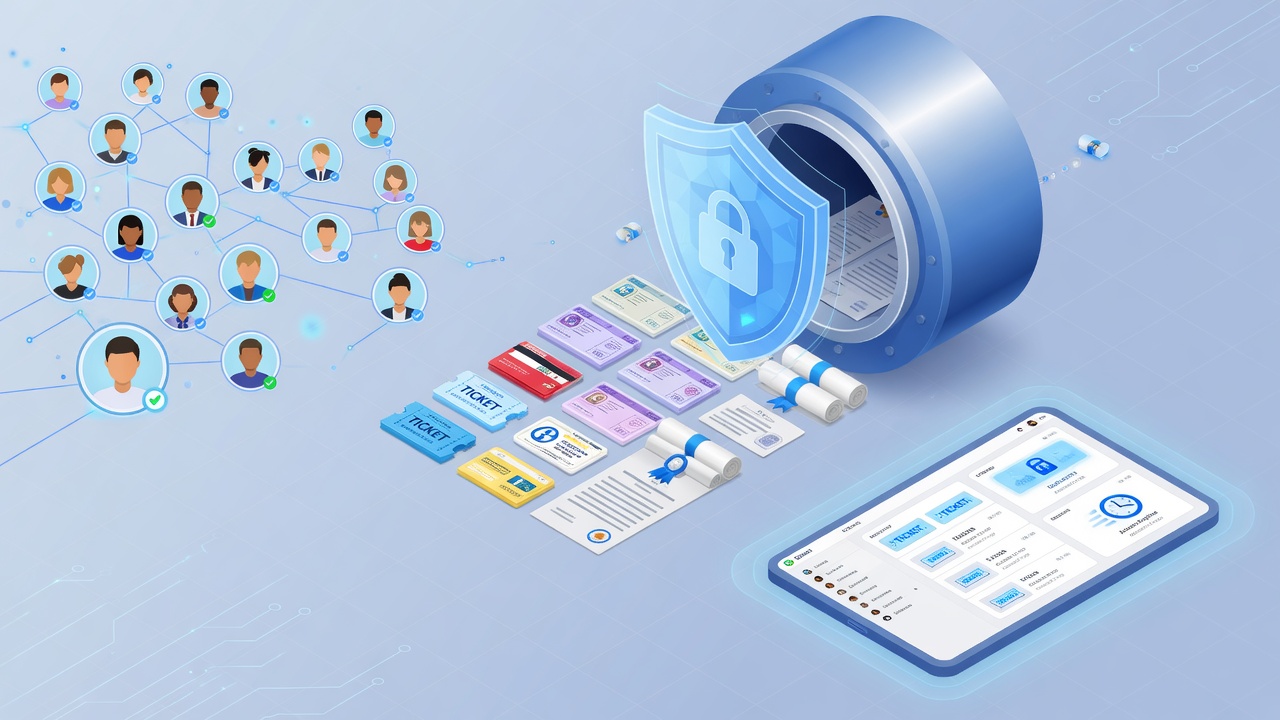
Manage users without a fixed cap — add as many as you need. Attach unlimited ticket files, visa files, membership files, license files, or even contract files for your clients. Store them on each user dashboard more securely, and let users access their documents any time.
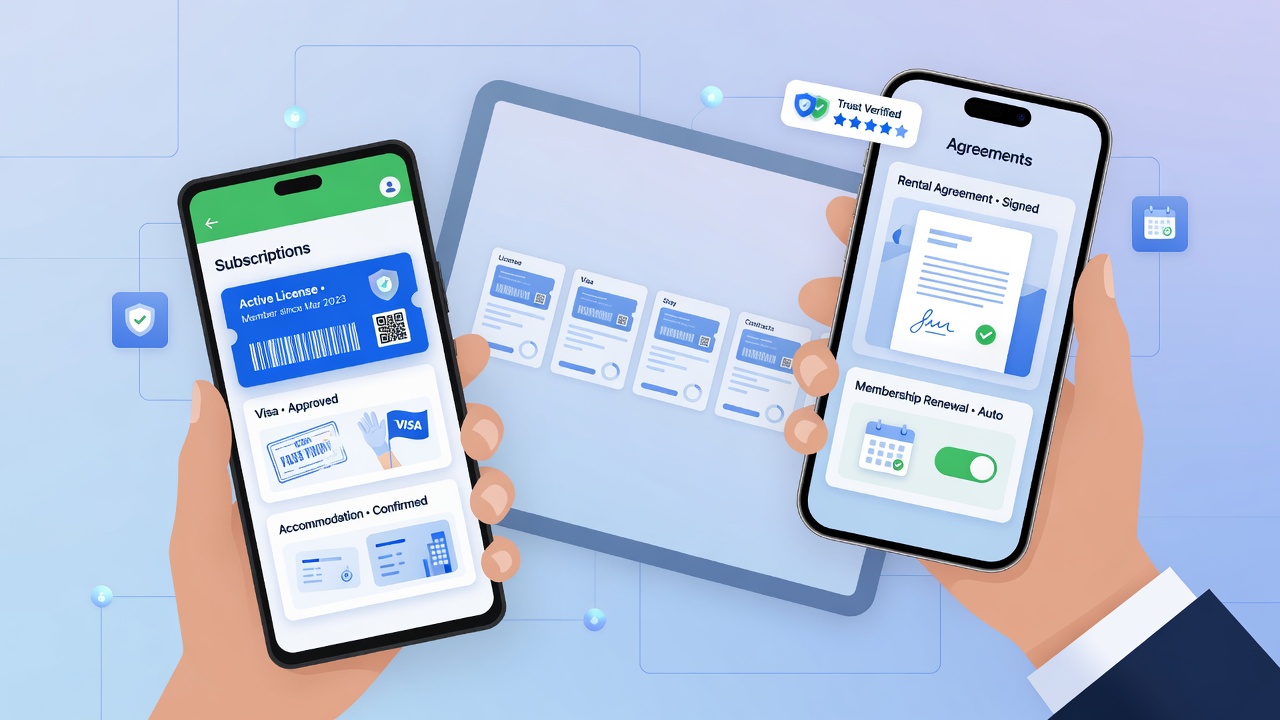
Customers can add easier access on the phone by integrating with Xdata Android / Apple Apps Development services. Users handle subscription, membership, license, ticket, visa, accommodation, and even contract details in their hand. Branded mobile apps also help you regain and strengthen trust with your users.
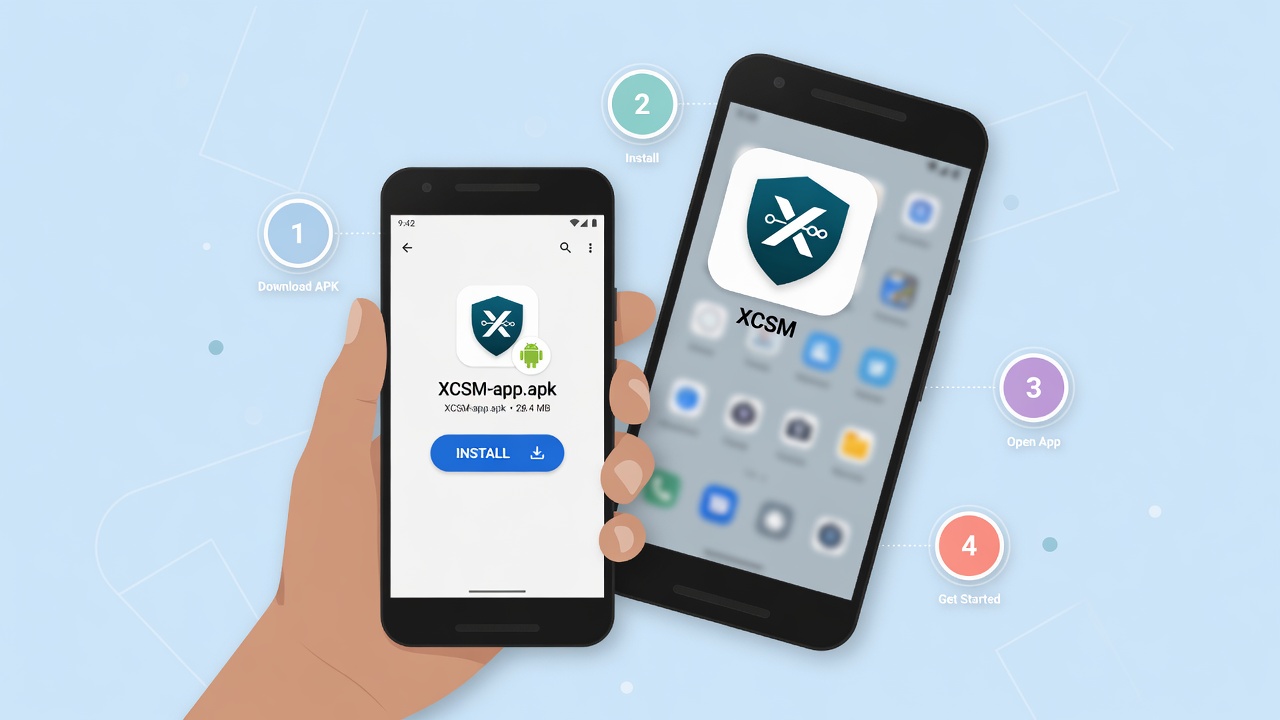
Android blocks unknown installers by default. You download XCSM-app.apk from the signed-in web (client.xdata.id or xcsm.xdata.id) or from inside the XCSM Android app. It is not on Google Play. A new APK installs over the old app — you do not need to uninstall first.
Register on the client portal, choose XCSM Notification, complete setup, and start delivering documents and expiry alerts to your users.